

Email Address
Ahmad Software Technologies
  1. Home
  2. Blogs
  3. How to Export LinkedIn Sales Navigator Leads Into Your CRM (No Developer or API Needed)

How to Export LinkedIn Sales Navigator Leads Into Your CRM (No Developer or API Needed)

By Ahmad Software • August 10, 2021

Here’s the Sales Navigator problem nobody admits to their manager.
You’re running hyper-targeted searches. You’re filtering by title, industry, company size, seniority. You’re saving leads and setting up alerts. Your pipeline looks disciplined.
Then you try to actually reach those people — and half of them vanish. No email. A LinkedIn request they’ll never accept. A phone number that rings a general office line. The intelligence is real. The contact data is the gap.
Sales Navigator is genuinely one of the best prospecting tools available for B2B. But it was designed to help you identify prospects, not to get their contact data out of LinkedIn and into your CRM or sequencing tool in a usable format. That last 20 feet — from identified prospect to contacted prospect — is where most reps lose time, lose leads, and lose pipeline.
LinkedIn Sale Navigator Extractor dashboard — export leads to CSV
This article covers both sides: how to use Sales Navigator properly (most teams use it at 40% of its capability), and how to fix the data extraction gap that kills the ROI of everything else.

Why Most Teams Are Getting Half the Value From Sales Navigator

Sales Navigator costs $99–$1,600/month depending on your tier. For that spend, most teams run a basic title + industry search, save some leads, and move on.
That’s leaving most of the platform’s power on the table. Here is what it actually does when used correctly.

1. Start With a Written ICP — Not the Search Bar

This sounds obvious. It isn’t. The majority of Sales Navigator users open the search interface and start typing a job title. That’s backwards.
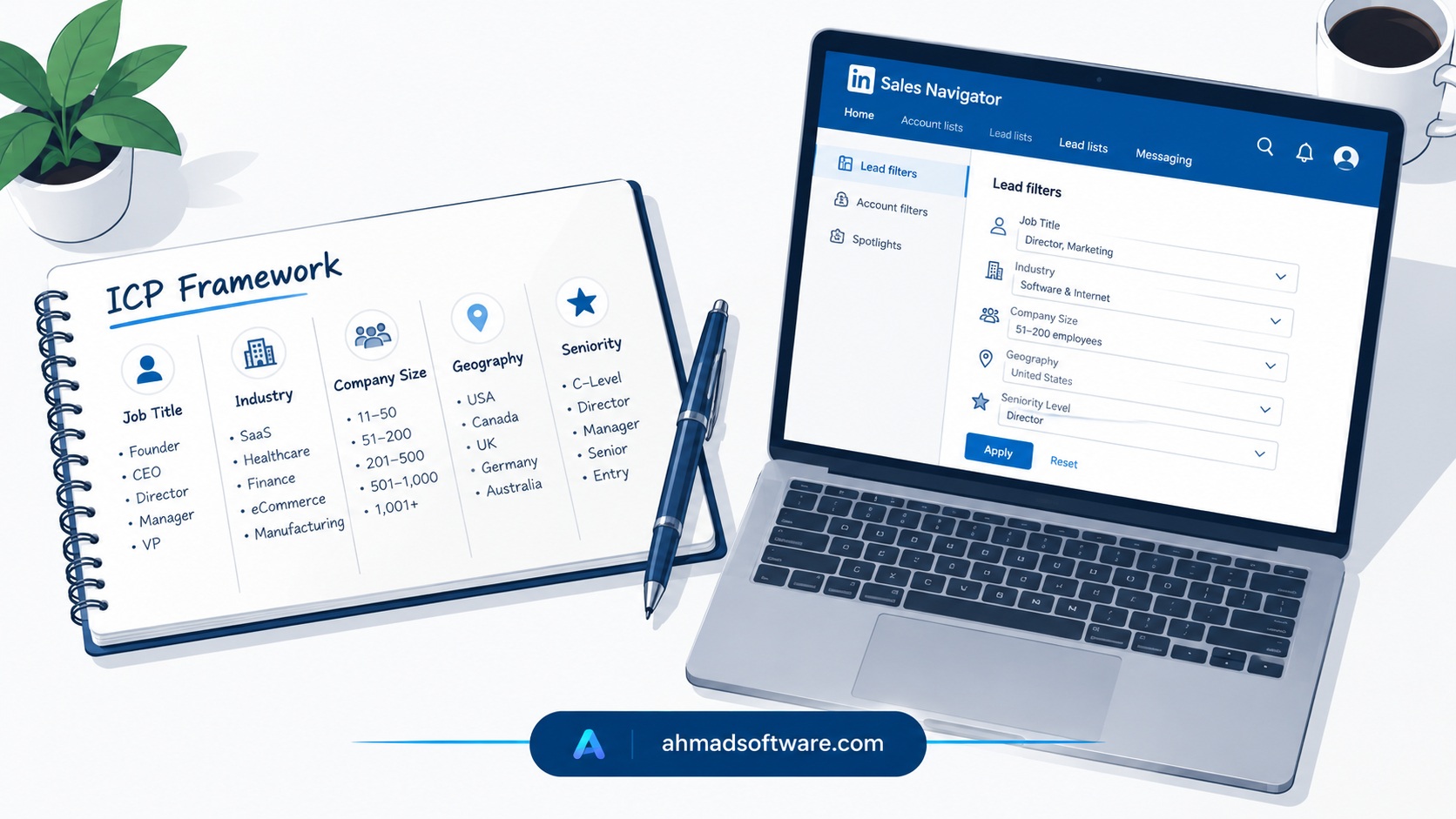
Before you touch a filter, write down your ideal customer profile in five specific fields:
  • Job title(s) — include variants. “Head of Marketing,” “VP Marketing,” “Director of Demand Generation” are three different people in different-sized orgs.
  • Industry — be brutal. If you’ve never closed a deal in hospitality, don’t prospect into it.
  • Company size — be honest about your deal size and where it fits.
  • Geography — is your sales motion truly global, or are you overestimating your reach?
  • Seniority level — economic buyer vs. champion vs. end user. Know which you’re targeting in each search.
A documented ICP converts Sales Navigator from a search engine into a targeting system. Without it you are just generating noise.

2. Use Boolean Operators — Sales Nav Supports Them, and Most People Don't Know

Here is what it actually does when used correctly. Without it, you are just generating noise.
The keyword field in Sales Navigator isn’t a text box. It. And OR and NOT operators, used correctly, separate a 50,000-result search from a 400-person precision list.
Practical examples
"VP Marketing" OR "Head of Marketing" NOT "Assistant"
"Sales Director" OR "Director of Sales" AND "SaaS" NOT "Intern"
These aren’t advanced tricks. They’re basic hygiene. But most Sales Navigator users have never typed a NOT operator in their life, which is why their lead lists are full of assistants, interns, and irrelevant titles.
Combine Boolean with company headcount, geography, and industry filters, and you’re getting genuinely surgical.

3. The "Posted on LinkedIn in Past 30 Days" Filter Is Underused to the Point of Embarrassment

This single filter may be the most valuable thing in Sales Navigator that most sales teams ignore.
When you toggle “Posted on LinkedIn in past 30 days,” you’re not just filtering for active users. You’re filtering for people who have opened LinkedIn, engaged with content, and are in a professional mindset right now — as opposed to the enormous percentage of LinkedIn accounts that are technically “saved” but belong to someone who hasn’t logged in since 2023.
Response rates on this segment outperform unfiltered contact lists significantly, because you’re reaching people who are present on the platform.
The outreach application is straightforward: find what they posted about, reference it specifically, connect your product to their stated concern. That’s not cold outreach anymore. That’s warm outreach with a cold approach budget.

4. Intent Signals Are Hidden in Plain Sight

Sales Navigator’s account-level intelligence surfaces buying signals that most reps scroll past:
  • New job postings — a company hiring a VP of Sales has budget and a growth mandate. That’s a buying signal.
  • Executive changes — a new decision-maker almost always means a vendor evaluation period. New leaders want to put their stamp on the tech stack.
  • Funding announcements — a Series B company has 18 months to prove unit economics. They’re buying tools that accelerate revenue.
  • News mentions — partnerships, expansions, and acquisitions all indicate active buying cycles.
The teams that build consistent pipeline from Sales Navigator have trained themselves to treat these signals as triggers, not background noise. They’re reaching out when the timing is aligned with the prospect's needs, not just when their own quarterly quota pressure builds.

5. Save Searches — And Actually Use the Alerts

Sales Navigator allows you to save up to 50 searches and receive alerts when new prospects match your criteria. This is lead flow on autopilot. Set it up once, and Sales Navigator will surface new contacts that enter your ICP — a new hire who matches your target title, a company that just crossed your headcount threshold.
Most reps set up one or two saved searches and never look at the alerts. That’s like running an off-funnel engine without ever looking at what it’s actually producing. You’re pumping out efforts. You don’t know if anything meaningful is coming out the other end.

6. Build Lead Lists, Not Searches

There’s a meaningful difference between running a Sales Navigator search and building an organized lead list. A search is a moment in time. A saved lead list is an asset.
For each prospect in your Sales Navigator list, you ideally want:
  • Full name and current job title
  • Company name, size, and industry
  • LinkedIn profile URL
  • Company website
  • Geographic location
Sales Navigator's “Save to List” feature lets you organize prospects by campaign, territory, industry, or pipeline stage. This turns your prospecting from a series of searches into a structured, repeatable system. The problem is what comes next.

The Gap That Kills Your Sales Navigator ROI

Here’s the part of the Sales Navigator workflow that nobody covers in the LinkedIn help docs.
You’ve built a tight, well-researched lead list. You’ve filtered intelligently. You’ve saved 300 prospects who genuinely match your ICP. Now what?
You need their contact data — email addresses, direct phone numbers — to actually reach them. Sales Navigator gives you LinkedIn profiles. Most outreach happens outside LinkedIn. And manually extracting contact details from 300 profiles, visiting each company website, cross-referencing email finders, and copy-pasting into your CRM is a half-day task that eliminates most of the efficiency you just gained from building a smart list.
This is exactly the problem that LinkedIn Sales Navigator Extractor by Ahmad Software Technologies solves.

What LinkedIn Sales Navigator Extractor Actually Does

LinkedIn Sales Navigator Extractor is a desktop application (Windows) that automates the extraction of contact data from your Sales Navigator search results and lead lists.
You do the targeting work in Sales Navigator — all the intelligent filtering, Boolean searches, and intent signal prioritization described above. The tool then pulls the structured data from those results automatically: names, titles, company names, LinkedIn URLs, emails, phone numbers, and website data — exported directly to CSV or Excel, ready for your CRM or sequencing platform.
No developer. No API integration. No manual copy-paste. No VA spending three days on data entry.
What matters here is where that data comes from. Unlike static lead databases — where you’re buying contact information that was last verified whenever the vendor last crawled it — this tool pulls from your Sales Navigator results in real time. The people in your export are the people who match your filters now, with their current titles and current companies.
That is a distinction. The average professional changes jobs every 2.5 years. A database record from 18 months ago has a significant probability of being wrong. A live extraction doesn’t have that problem.

How the Full Workflow Actually Runs

Put the strategy and the tool together. The workflow looks like this:
  • 1. Define your ICP in writing. Write down the industry, geography, company size, seniority level, and specific job titles that fit your ICP. This step of defining the ICP takes fifteen minutes and sets the quality for all later steps.
  • 2. Build your Sales Navigator search. Use Boolean operators. Add intent signal filters — recent job changes, posted in the last 30 days. Layer in account-level filters where relevant. Narrow down to a group of prospects. A batch of three hundred to five hundred works well. Ten thousand is too big to handle.
  • 3. Save the list to Sales Navigator. Organize it by campaign or territory so you know what you’ve reached out to and can follow up easily.
  • 4. Run LinkedIn Sales Navigator Extractor. Point it at your saved list or search results. Let it extract the structured contact data automatically.
  • 5. Export to CSV/Excel. Clean and verify. Run the email output through NeverBounce or ZeroBounce before importing to your sequencing tool. Bounced emails hurt sender reputation. Verified emails protect it.
  • 6. Segment before you sequence. Don’t batch-blast the whole export. Segment by industry, trigger event, or title level. A message that references “I noticed your company just posted three enterprise AE roles — timing seems relevant” outperforms a generic cold email by a factor that isn’t subtle.
The whole workflow — ICP definition through verified export — takes under two hours for a 300-person list. Compare that to the same output produced manually: 2–3 days of VA time, or your own time, which costs more.

The Honest Limitations (Read This Before You Buy Anything)

Sales Navigator is not perfect, and neither is any extraction workflow.
Sales Navigator’s own data has gaps. Not every LinkedIn user has a phone number on their profile. Not every company lists its email format publicly. You will get partial records on some prospects. That’s normal. Budget for 70–80% complete contact records, not 100%.
Volume requires discipline. This is not a tool for extracting 50,000 leads at a scale that implies automation at speeds LinkedIn detects and restricts. Treat it like a precision instrument. Extract reasonable batches. Use appropriate delays. Stay within sensible limits. Aggressive extraction at high volume creates platform risk.
A clean list is not a closed deal. The efficiency gains here are real. But they apply to the top of the workflow — identification and contact data acquisition. Your message, your value proposition, your follow-up schedule, and your offer are still the factors that decide whether someone takes action. A list of 300 verified people with an email message will not do as well as a list of 100 verified people with a strong personal approach. The tool helps you reach the people. What happens next is still on you.

Who This Workflow Makes the Most Sense For

The Sales Navigator + extraction workflow delivers the strongest return for:
  • B2B sales teams running targeted outbound who are tired of bounced emails and CRM records with missing fields
  • Digital marketing agencies looking to find clients in certain industries or regions
  • SaaS companies focusing on mid-market accounts with a clear ideal customer profile.
  • SDRs and sales managers who need to hand off clean, CRM-ready prospect data without a research VA
  • Recruiters and staffing firms mapping hiring manager contacts across target employer landscapes
If you’re spending meaningful time on manual data entry after your Sales Navigator research, or if you’re importing messy, incomplete contact records into your CRM, this workflow fixes the specific bottleneck you’re dealing with.

Bottom Line

LinkedIn Sales Navigator is one of the best B2B prospecting tools on the market. The filtering capabilities, intent signals, and real-time alerts are genuinely powerful when used correctly — and most teams use them at a fraction of their capability.
The gap that limits its ROI isn’t the targeting. It’s the data extraction step that follows. Getting clean, structured, CRM-ready contact data out of Sales Navigator and into your outreach tools is where most teams bleed time and lose the leads they already identified.
LinkedIn Sales Navigator Extractor closes that gap directly. It’s not a replacement for the targeting work — it’s what makes the targeting work actually actionable.
Do the ICP work. Build the right search. Extract the data. Verify before you send. Then put your energy where it really counts: the message, the offer, and the follow-up.
👉 Download the trial

User Reviews & Feedback

Leave a Comment

Click to chat