Welcome
to
LinkedIn
Lead Extractor (PS)

A product of Ahmad software Technologies
Download LinkedIn Lead Extractor
User
Manual
A product of Ahmad software Technologies
Download LinkedIn Lead Extractor
User
Manual
Version 3.0.2
Tired
of Copying LinkedIn Leads Into Excel
Spreadsheets?
If yes “LinkedIn Lead Extractor” is the right choice saving your valuable time and money.
LinkedIn is the best source of contact information of professionals worldwide with 120 million users and extensive targeting capabilities to allure advertisers. You can approach a Physician to freshly baked food providers listed on LinkedIn in through our LinkedIn in Lead Extractor.
If your product is particularly useful for community e.g selling surgical apparatus to hospitals you can get contact information of the Administrators rightly divided up by category on LinkedIn in. Simple searches in your field will reveal thousands of experts, service providers and potential clients. LinkedIn Lead Extractor can extract the data that match the search criteria that you specify, making it much more efficient.
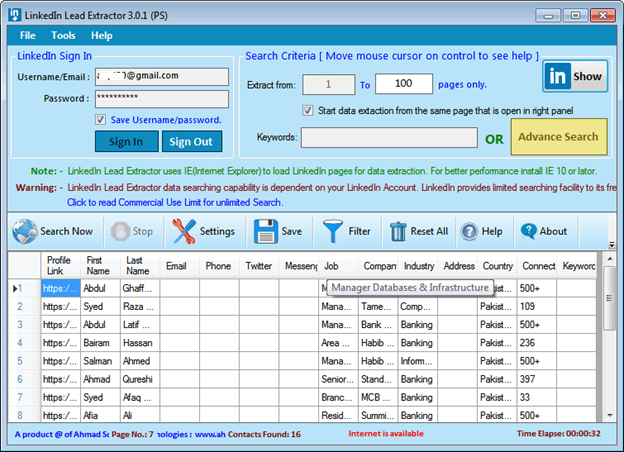
LinkedIn Lead Extractor is a desktop application which allows you to extract endless number of people profiles data from LinkedIn at an exceptionally fast rate. It automatically extracts Business Name, Email, Phone Address, Yahoo messenger id, Skype Id, Google Talk ID, etc. You can export your data in .xlsx, .csv,(opens in excel) .txt files.
Feature List
vExtract Leads
LinkedIn Lead Extractor can extract your targeted customer’s LinkedIn Name, Email address, Messenger's Ids, Phone numbers, Address, Twitter, Job designation, Company, Country, Profile Link.
vKeyword based searching
Lead Extractor searches your targeted customers based on your search keywords.
vLinkedIn Advance Search
Lead Extractor supports LinkedIn advance search.
vStart Search from Specific Page
Lead Extractor supports searching from specific page on search results.
vUnicode
Support
LinkedIn
Lead Extractor support Unicode character-set. You can save fetched
search results in Unicode format.
vInternet Failure Detector
LinkedIn Lead Extractor automatically pauses/resumes on internet failure during processing.
vContacts Filtering
You can also apply filters to get your targeted contact list.
vExport Data
Software provides options to save e-mail addresses in EXCEL format, .CSV files (Opens in EXCEL), TAB delimited (.txt files) format.
· Windows 8, Windows 7, Windows Vista, Windows XP, Windows 2003, Windows 2000
· Net Framework v4.0
How to use “LinkedIn Lead Extractor”?
1.
Please click on
 button
to see LinkedIn login screen. Screen will look like below
screen:
button
to see LinkedIn login screen. Screen will look like below
screen:
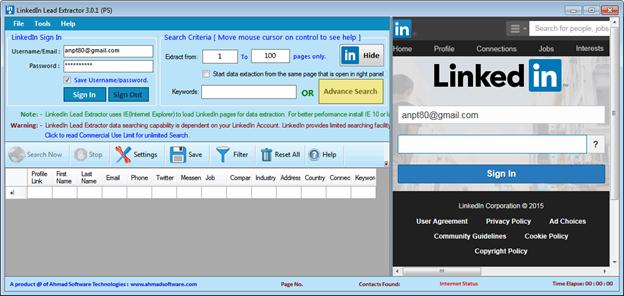
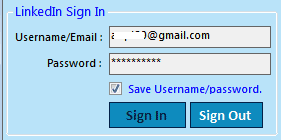
2. You need to sign in to LinkedIn to use the extractor. Please add your LinkedIn username/email address and password and click on “Sign In” button. It will take a while to get you logged in. See on right side screen if you logged in successfully.
3.
On successful login, “Search”
 button
will be enabled.
button
will be enabled.
4. To sign out from LinkedIn please click on “Sign Out” button.
5. You can also increase the width of your LinkedIn side panel with mouse cursor on blue bar between the two panels.
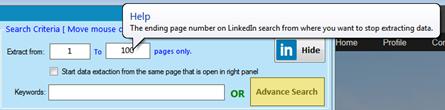
To see help about each control on software screen, just move the mouse on the control and it will show you help like below:
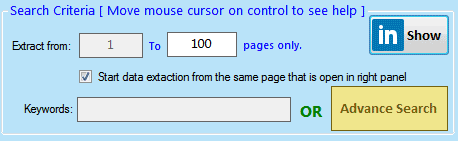
1. Extract From: You can add the starting page number from where search start. Default is 1 and you can set it according to your needs. For example yesterday you extracted first 100 pages and today you want to start your search from 101 to next pages and you set start page at 101.
2. To: The ending page number on LinkedIn search from where you want to stop extracting data.
Note:- Each search page show 10 profile links therefore you start from page number 1 up to 50 then it means you’re searching 50*10=500 profiles.
3.
Start data extraction from the same page that is open in right
panel
If you want to extract data from your saved searches or have already searched or LinkedIn sent you leads and you want to extract this data only then check this option and search your page on right panel on LinkedIn page. In this case you don’t need to add keyword or starting page number.
4.
Keyword:
 Enter
the keywords you want to search on LinkedIn.
Enter
the keywords you want to search on LinkedIn.
5.
Advance Search:
 If
you want to use LinkedIn Advance search on LinkedIn page then click
this button and screen will look like this one:
If
you want to use LinkedIn Advance search on LinkedIn page then click
this button and screen will look like this one:
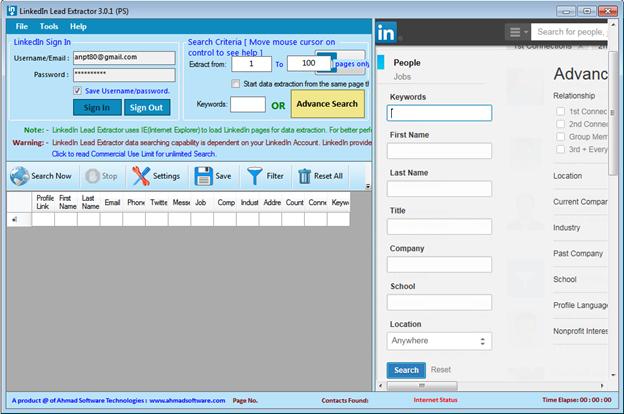
You have to enter your search criteria in right side panel but note
that you should not click search
button .
.
Note: - You don’t need to write keyword in left pan if your write in advance search.
·
To start search, click on
button.
·
Progress panel will show like:
·
To stop search click on
 button.
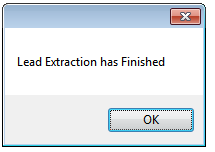
· On completion of search a message box will show:
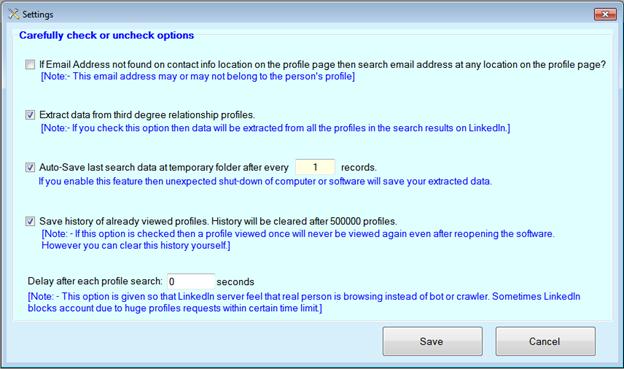
LinkedIn settings have good description on screen. Please read it carefully.
To filter and remove bad records (if any) click on
 button
and a popup will open like below:
button
and a popup will open like below:
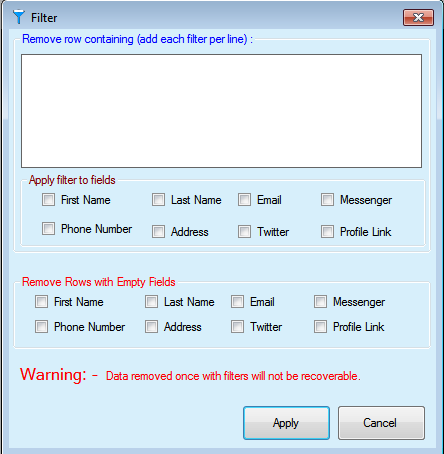
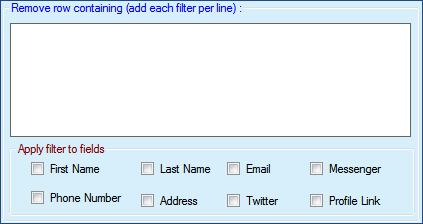
· If you want to delete any fetched profile containing specific words then add each filter in text box and check the fields that you want to search.
· If you want to remove such rows that have any specific field empty then select the specific fields:

To save extracted data, click on
 button
and save file dialog box will open as shown below:
button
and save file dialog box will open as shown below:
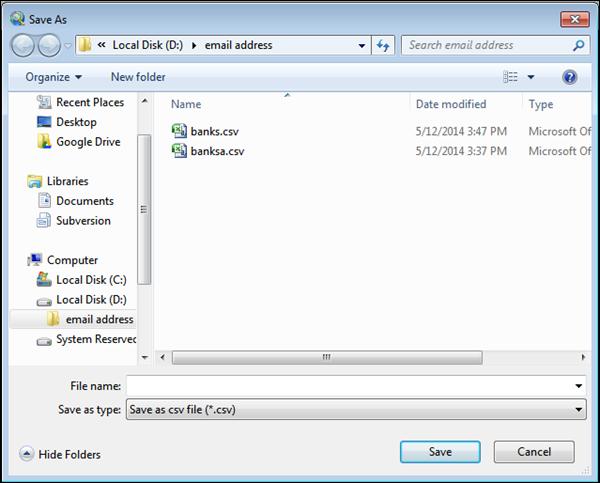
You can save files in .xlsx, .csv (Opens in Excel and Open Office), and .txt format.
Note:Please note that this feature is not available in free/trial version. To get this feature you need to activate the software for full feature version.
If you want to clear all grid data then click this
 toolbar
button
toolbar
button

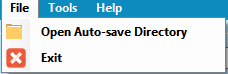
·
Open Auto-Save
Directory
If you want to open temporary directory where grid data is temporarily saved then open this directory and open file “GridData.csv”
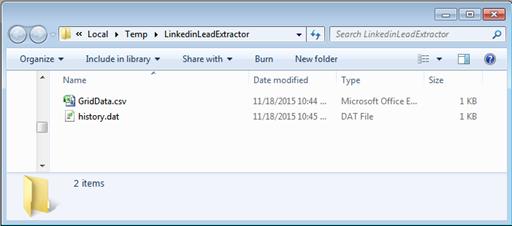
·
Exit

To close the software click the exit menu item.
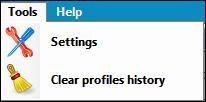
·
Settings
To close the software click the exit menu item.
·
Clear Profiles History
Software saves history of each viewed profile so that already
viewed and saved profile data should not view again. If you want to
clear saved profiles history then click menu item
“”
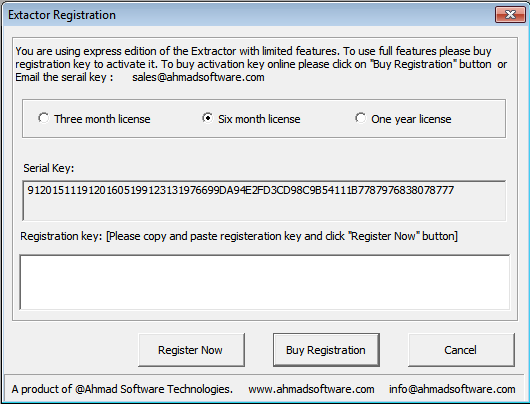
To get full featured “LinkedIn Lead Extractor” please click
the
 button
and popup will open like below:
button
and popup will open like below:
·
If you have registration key then please enter in second box and
click
 button.
·
If you want to buy registration key then click on
 button.
This will bring you buy registration key page as shown in below
screen:
button.
This will bring you buy registration key page as shown in below
screen:
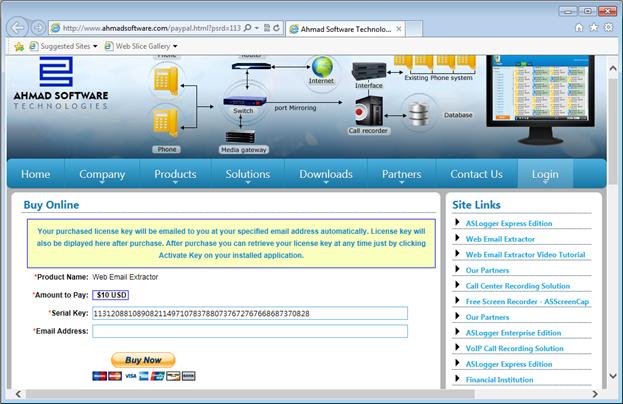
Please carefully read instructions on the page. Write your email address and click “Buy Now” Button. On successful buy, registration key will be emailed to you. Pick your registration key from your email and put in “registration” box and click “Register Now”.
Other Software Products
· Call Recording and Voice Logging System
· Screen Recorder and Software Presentation Developer